Early access

Accounting and time tracking for professional practices Beta

Two Windows programs for people who run a small practice or business: one keeps the books, the other records the hours you bill. Use either on its own, or both together. Everything stays on your own PC.

Accounting Program

Full double-entry accounting for a small business: ledger, customers, vendors, bank, HST and financial statements.

Download for Windows

Windows 10 or 11 (64 bit)  ·  All versions

Price
Free during the beta
Version
Latest beta
Released
See release notes
Download
About 65 MB
Admin rights
Not needed
Your data
Stays on your PC
Internet
Never used

Time Tracker for Professionals

Record billable time in your billing increment, on a weekly grid or with a timer, and report it by project, client or period.

Download for Windows

Windows 10 or 11 (64 bit)  ·  All versions

Price
Free during the beta
Version
Latest beta
Released
See release notes
Download
About 48 MB
Admin rights
Not needed
Your data
Stays on your PC
Internet
Never used
Your browser will warn you about these downloads. The betas aren't code signed yet, so Edge says the file "isn't commonly downloaded". It's safe to keep. In Edge:
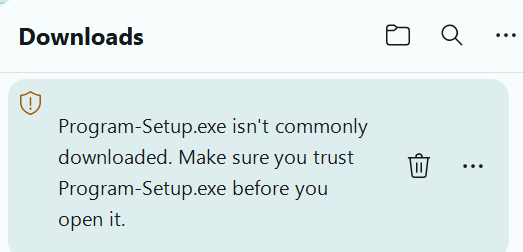
  1. After you click Download, Edge shows a warning in its Downloads list (the arrow at the top right). It says the file "isn't commonly downloaded".
    Show picture Edge's Downloads list showing the installer, Program-Setup.exe, with the message that it isn't commonly downloaded, and a shield warning icon.
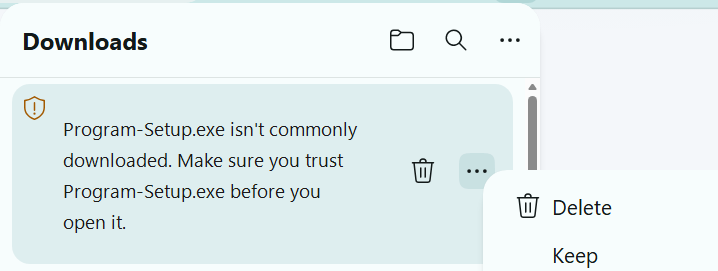
  2. Click the three dots beside the file, then choose Keep.
    Show picture The three dots menu beside the download, showing Delete and Keep.
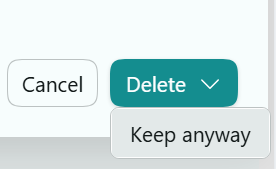
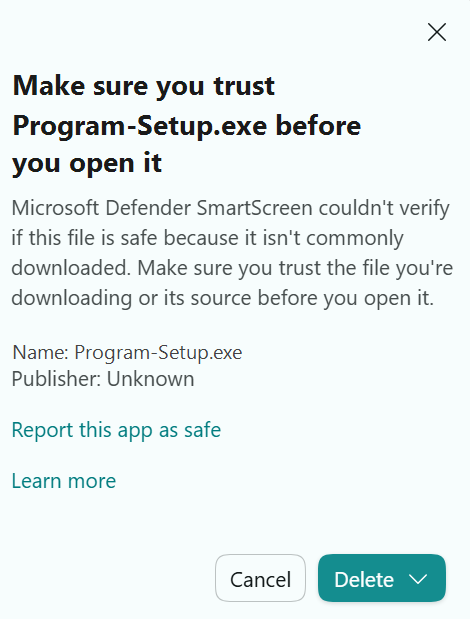
  3. A second box asks you to confirm. Click the down arrow beside Delete, then choose Keep anyway.
    Show pictures Edge's box titled Make sure you trust this file before you open it, with a Cancel button and a Delete button that has a down arrow. The Delete button's down arrow opened to show a Keep anyway option.
Click Show picture to see each step. The file name in the pictures is an example. Your screen will show the name of the program you downloaded, and the steps are the same. Other browsers ask the same thing in a similar way. Windows may warn again when you run it: click More info, then Run anyway.
What they do

Keep the books, and bill every hour

Accounting Program

General ledger and journal

Double-entry books with a chart of accounts, journal batches and drill-down from any ledger to the entry behind it.

Customers and vendors

Invoices, bills, payments and ledgers for each customer and vendor, with attachments kept beside the records.

Bank and credit cards

Bank entry and reconciliation, with Quicken (QFX) bank and card downloads read on your PC.

HST and fixed assets

HST worked out from your entries, and fixed assets with depreciation.

Statements and reports

Financial statements and reports to preview, print or save as PDF.

Backups built in

Company files are backed up automatically, and every restore keeps a safety copy first.

Time Tracker for Professionals

Weekly grid

Drag down a day to record a block of time, click a block to edit it, and move around the week with the keyboard.

Live timer

Start and stop as you work. Time rounds up to your billing increment, such as 15 minutes.

Every entry in full

Billable or not, project, class, description and notes on each entry.

Projects, clients and rates

Hourly rates that can change over time, so past work keeps the rate that applied then.

Reports, PDF and CSV

Totals by project, client, class or period, with detail, PDF and CSV for Excel.

Import and backups

Bring in time from spreadsheet timesheets. Backups run automatically when the program closes.

Better together

From hours worked to invoices sent

One list of projects

Time Tracker can read your projects and rates from your Accounting Program company file, so you set them up once.

Time goes to billing

Recorded time is sent across for invoicing, so the hours you worked become the invoices you send.

Invoiced time is locked

Once time has been invoiced it is locked in the tracker. Corrections are made as adjusting entries, so the two always agree.

Each program writes only its own file and reads the other's without changing it. Either program works fully on its own.

Install

Up and running in a few minutes

  1. Download the installer for the program you want, using the buttons above.
  2. Run it and follow the steps. No administrator rights are needed.
  3. Set up your company file or your projects when the program first opens.
  4. Updating? Run the newer installer. Your data and settings are kept.
Expect two warnings. Because these betas aren't code signed yet, your browser asks you to confirm the download (see the steps under the Download buttons), and Windows SmartScreen may say it "protected your PC" when you run it. Click More info, then Run anyway.
Beta terms, in short. The betas are free. Later versions may need a paid licence, and we'll say so on this page before that happens. The version you have installed keeps working when the beta ends, and your data stays on your PC. Know someone who'd like to try them? Please send them this page rather than the installer, so they get the current version. The full terms are in each program's Licence Agreement: Accounting Program and Time Tracker for Professionals.
Not professional advice. Both programs are record-keeping tools. Check important figures against your own records, and consult a qualified professional before filing a return or relying on a figure.
Found a problem or have an idea? Email support@hillierconsulting.ca.
What's new

Release notes

Accounting Program

The latest release notes are on the release page.

Time Tracker for Professionals

The latest release notes are on the release page.